

First, verify you have active VinSolutions/DealerSocket and BDC Central/CallerCX subscriptions, enable Partner Integration, confirm API credentials and permission scopes, and note production vs sandbox. Second, enable the partner in CRM, map tracking numbers to lead sources, link BDC agent accounts to VinSolutions user records, and set CRM push rules for desired call types. Third, run test calls, confirm field mappings and automatic matching, monitor logs and alerts, and repeat until stable — continue for configuration tips.
Key Takeaways
- Confirm active VinSolutions/DealerSocket and BDC Central accounts, API access, and Partner Enablement toggled on in CRM settings.
- Map tracking phone numbers and lead sources in BDC Central to matching lead sources and fields in VinSolutions/DealerSocket.
- Link BDC agent accounts to CRM user records so incoming calls assign correctly to dealer BDC reps.
- Configure CRM integration to push desired call types (all calls or calls with first/last name) and start the handshake from CallerCX/BDC Central.
- Test with sample calls, monitor integration logs, and iterate mappings until leads consistently flow into the live BDC board.
Verify Compatibility and Prepare Accounts
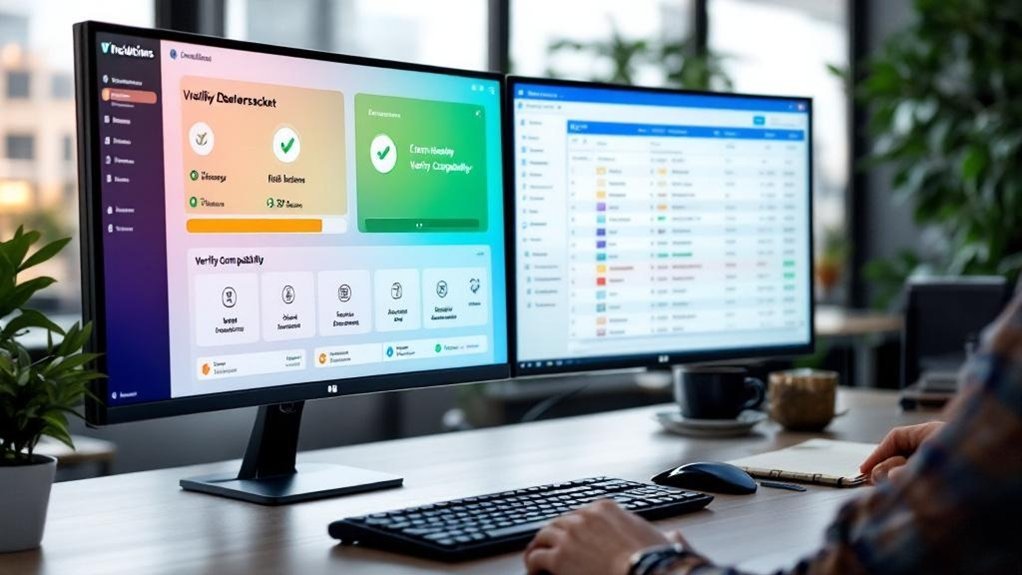
Before you begin the integration, confirm both VinSolutions and BDC Central/CallerCX subscriptions are active and that your VinSolutions account has Partner Enablement toggled on (Settings > Dealer Settings > Partner Enablement); also check with your Success Manager for any integration fees so there are no billing surprises. Next, verify account credentials, API access, and permission scopes for both platforms so authentication will succeed. Document environment types (production vs sandbox) and decide which environment you’ll use for initial tests. Plan to integrate BDC Central using documented endpoints and expected payloads; retrieve API keys and IP allowlists before initiating calls. Follow best practices: maintain versioned configuration backups, log all transactions, and schedule a brief verification window to confirm connection health.
Configure Integration Settings and Match Users
Now that your accounts and API access are verified, configure VinSolutions to enable CallerCX under Settings > Dealer Settings > Partner Enablement and set the CRM integration to either push all calls or only calls with first and last names based on your lead quality rules. Next, open CallerCX/BDC Central and initiate the integration handshake so the automatic matching algorithm can run. Verify that tracking lines and lead sources are mapped correctly; unmatched calls will default to the Phone Up lead source and require manual reassignment. Link BDC agent accounts to VinSolutions user records to guarantee proper agent assignment. After linking, validate that user IDs and phone numbers align. Regularly audit these configure integration settings and match users mappings to maintain assignment accuracy and ideal lead routing.
Test Connections and Monitor Lead Flow
When you begin testing connections between VinSolutions/DealerSocket and your live BDC board, first confirm that each tracking line in BDC Central/CallerCX is linked to its corresponding lead source in VinSolutions and that the CRM integration setting is set to push the intended call types (all calls or only calls with first and last names). Run the automatic matching algorithm and verify no lines default to the Phone Up lead source. Test connections by generating sample calls, then review call type, agent name, result, summary, and recordings in VinSolutions to validate field mapping. Monitor lead flow continuously via integration logs and set alerts for mismatches or dropped records. Adjust mapping or user matches immediately and re-run tests until transmission is reliable.
Frequently Asked Questions
How Do I Handle Duplicate Leads Across Systems?
You detect and dedupe duplicates via deterministic matching rules, then log conflicts for review; implement duplicate lead management policies, automated merging, and reconciliations; monitor system integration challenges, alert on failures, and audit timestamps for resolution.
Can I Route Leads by Salesperson Territory?
Yes — you can. Configure lead routing rules tied to territory management, map salesperson territories, set priority and fallback logic, enforce dedupe checks, test with sample feeds, monitor metrics, and iterate rules for coverage and performance.
Will Call Recordings Sync to the DMS?
About 72% of dealerships retain call logs; yes, call recordings can sync if you enable call recording integration and verify DMS compatibility. You’ll map fields, set API credentials, schedule transfers, and monitor logs for errors.
How Are Timezones Managed for Appointment Scheduling?
You’ll enforce timezone synchronization by mapping user, dealership, and customer zones to UTC, converting appointment slots accordingly, and scheduling appointment reminders at local times; log offsets, handle DST rules, and verify via automated tests.
What Happens During API Downtime or Maintenance?
During API downtime or maintenance, you’ll see degraded API Reliability; systems queue requests, retry with backoff, log Downtime Impact, notify monitoring, switch to cached data or read-only mode, and resume normal operations after successful health checks.
Conclusion
You’ve done the sensible thing: connected Vinsolutions/DealerSocket to a live BDC board so leads stop vanishing into the void. Now watch the dashboards like a hawk—verify mappings, confirm user matches, and run test leads until logs show steady flow. Irony: the system you wrestled into alignment will now hum predictably, betraying no hint of the late-night troubleshooting. Keep monitoring, tighten thresholds, and document every tweak for future rescue ops.